
Three files, but one upload slot. A long PDF when you only need a few pages. A document that opens sideways.
If these small PDF jobs keep sending you back to your computer, try All-in-one PDF Editor on your phone. Merge PDFs, extract selected pages, rotate a document and convert PDF pages to PNG—all four tools include saving the result for free.
Real screens and a 24-second preview
See separate PDFs become one file, selected pages become a new PDF, a document turn upright and a page become a PNG. The real Android screenshots below show the app's Korean-language interface.
Combine, extract, rotate, convert.
See merging, selected-page extraction, document rotation and PNG conversion in the actual Android app. The demonstrated app interface is in Korean.
Read the video description
- PDF tasks still feel complicated?
- Bring multiple PDFs together. PDF merge.
- Keep only the pages you need. Page extraction.
- Turn the document upright. Page rotation.
- Merge PDFs, extract pages, rotate and convert to PNG.
- All these tools, free. All-in-one PDF Editor. Contains ads. Ad removal is an optional purchase.
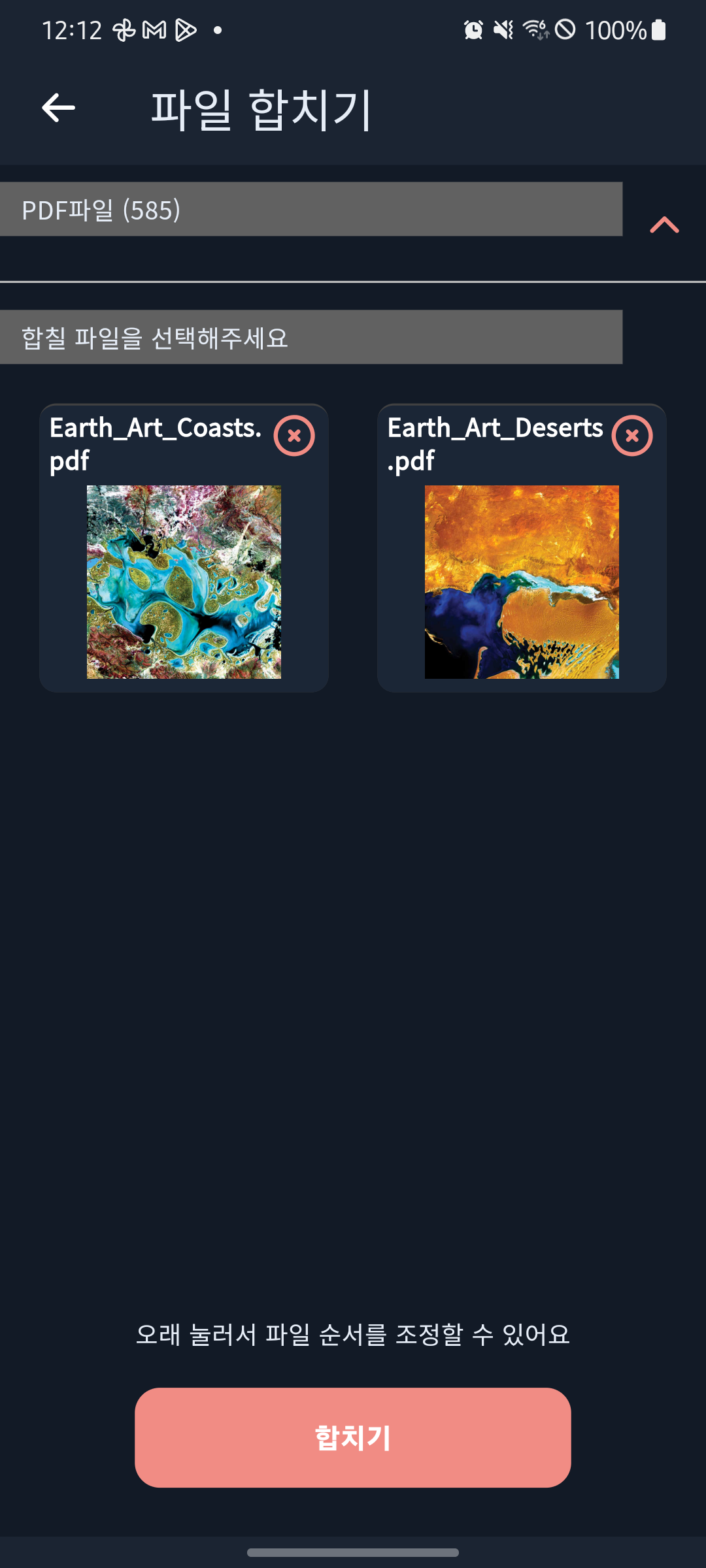
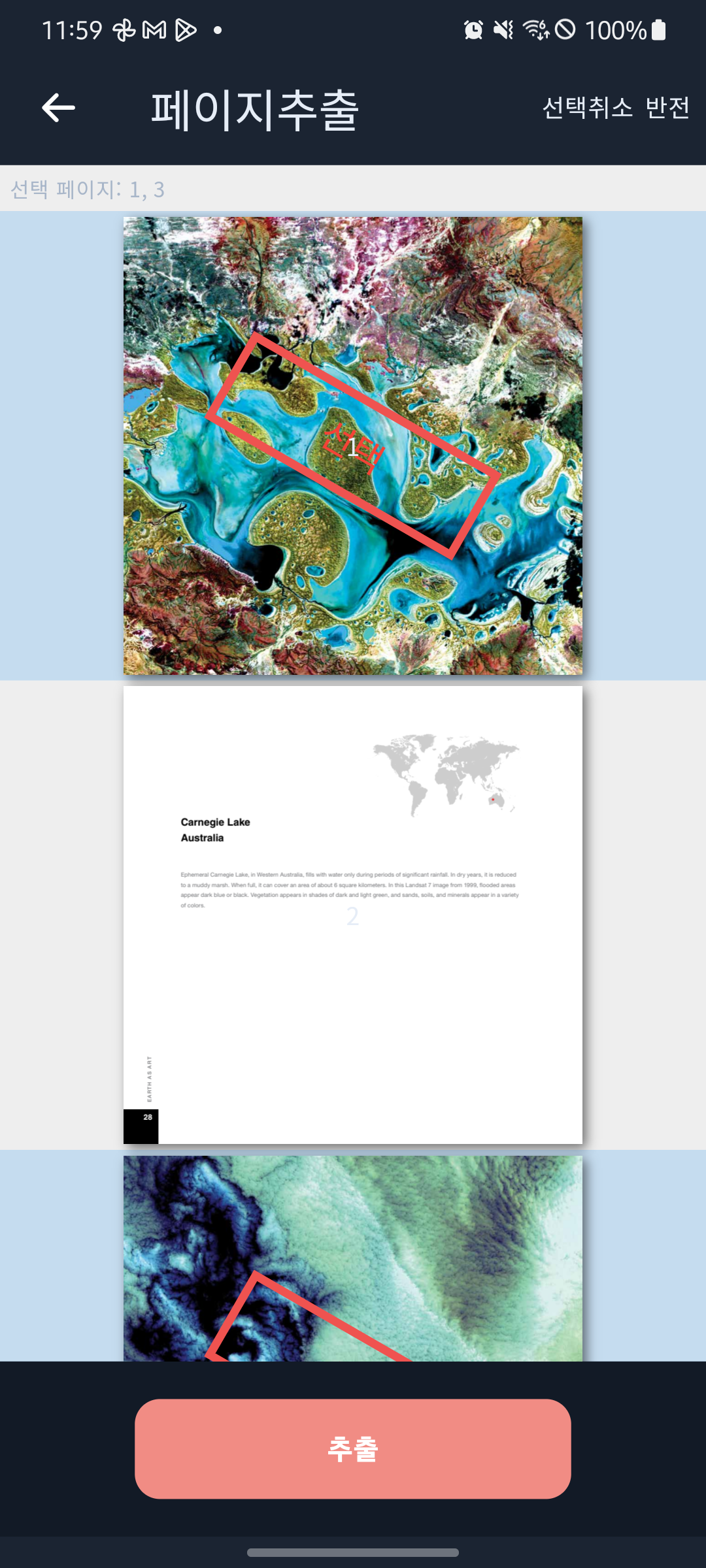
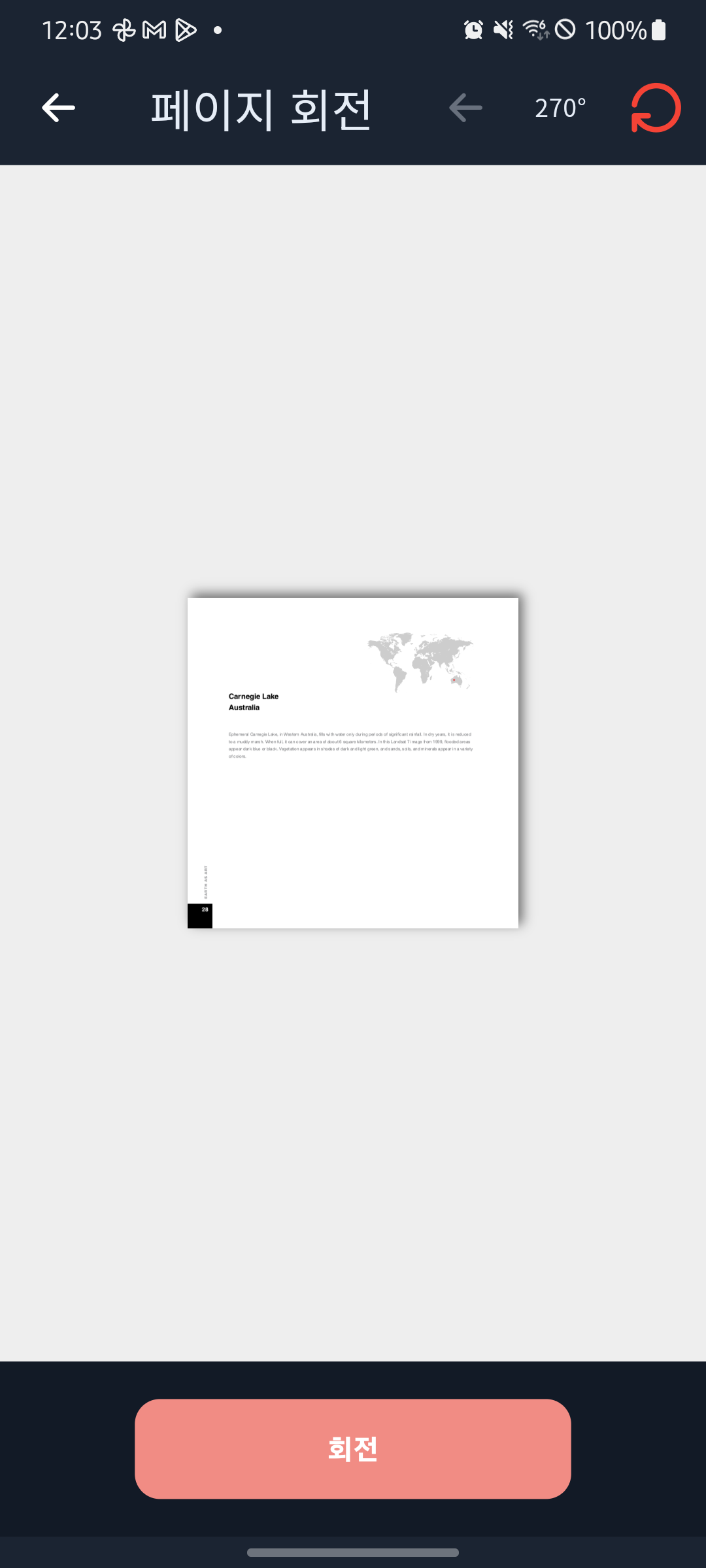
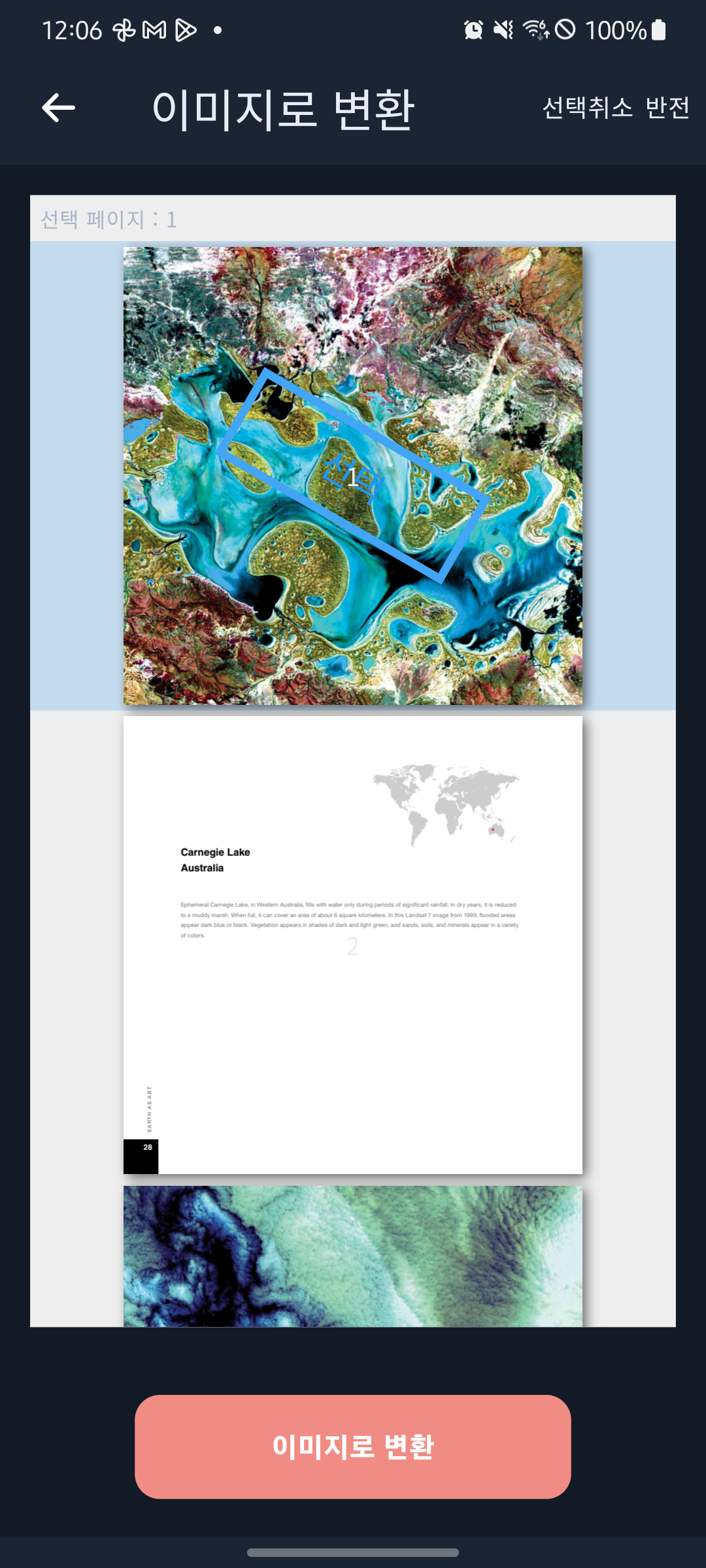
These are actual Android app captures with a Korean-language interface. Select an image to view it at full size.
Several files, one submission: merge PDFs
An application form, supporting documents and a separate information sheet can leave you with a handful of files to send. The recipient then has to open each one.
Use PDF merge to bring the files together into one PDF. It is useful for documents that belong together or need to be submitted as one file.
- Select the PDFs you want to combine.
- Check their order; press and hold a file to reorder it if needed.
- Tap the merge button and save the result.
Open the saved PDF and check the first page, last page and joins between files before sending it.
Send only what matters: extract selected pages
Sometimes you need a section of a report, a few pages of course material or a particular illustration—not the entire document.
Use page extraction to select the pages you need and save them as a separate PDF. Your recipient can get straight to the relevant material.
In the demo, pages 1 and 3 are selected and saved as a new PDF. The pages you choose do not have to be consecutive. Open the result to check that every selected page is included.
Turn the document instead of your phone: rotate PDFs
Did a scanned document arrive sideways?
Use page rotation to change its orientation. Choose an angle, check the preview and tap the rotate button to save the result.
This tool rotates every page in the document by the same angle. Reopen the saved PDF and check the orientation of each page.
Share a PDF page as an image: convert to PNG
When you want to send a page as an image or place it in another document, use image conversion.
Select the pages you need and convert them to PNG. In the demo, all pages are deselected and only page 1 is chosen, producing one PNG image.
Use the result in a chat message or insert it into your materials. Open the image first to check that the content you need is easy to read.
Four tools and saving the result, free
The PDF merge, selected-page extraction, document rotation and PNG conversion shown in this guide include saving the output without a feature or export purchase.
The app contains ads. An optional lifetime ad-removal purchase is available if you prefer to use it without ads. You can use these four tools whether or not you buy ad removal.
Start your next PDF job on your phone
Bring files together, pull out the pages you need, change document orientation or turn a page into an image. Start with the tool you need in All-in-one PDF Editor.
Install All-in-one PDF Editor on Google Play · Explore the product
Demo imagery: NASA/USGS, Earth as Art (2012). PDF excerpts reordered for demonstration. No endorsement implied. View the source
All-in-one PDF Editor
Merge PDFs, extract selected pages, rotate a document and convert to PNG. All four tasks and saving the results are free.
Contains ads. Lifetime ad removal is optional; no purchase is required for these four tasks or saving their results.